Workflows: Approval enhancements and duplication, and more

frontend
25.12
highlight
Published

December 10, 2025

Workflow approval steps with multiple voter eligibility blocks

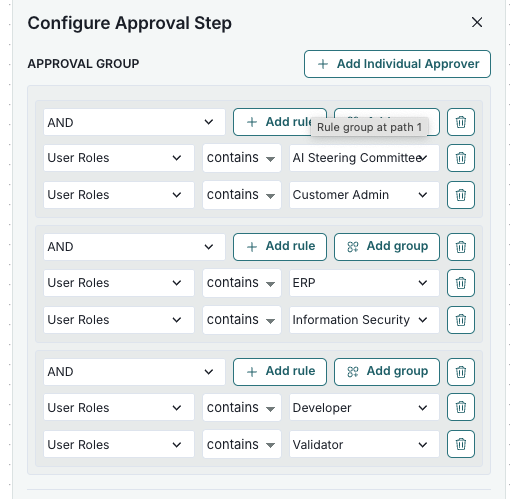
You can now add multiple voter eligibility blocks to approval step conditions in the settings. Each block defines requirements for an individual approver, and at least one vote is required for each block.

If an approver matches several blocks, their vote counts for all relevant ones.
Configure workflows

A configuration interface titled Configure Approval Step displays a section labeled Approval Group. It includes a series of dropdown menus and buttons arranged in a vertical list. Each row begins with a dropdown labeled AND followed by a dropdown for User Roles, a dropdown for conditions such as contains, and a text field with specified roles like AI Steering Committee and Customer Admin. To the right of each row are buttons labeled Add rule and Add group, with a trash bin icon for deletion. At the top right corner, there is a button labeled Add Individual Approver.

Configure Approval Step dialog

Duplicate existing workflows

You can now duplicate existing workflows, complete with intelligent trigger conflict detection and automatic resolution.

Seamless experience

  • Duplicate workflows with a single click from the workflow action menu.
  • Preserves the entire workflow structure, including versions, states, canvas nodes and edges.
  • Clone model workflows as artifact workflows and vice versa for cross-entity reuse.
  • Edit title, entity type, artifact type, and trigger configurations.

Smart validation

  • Real-time conflict detection for registration and field-triggered workflows.
  • Automatic warnings when trigger conflicts exist.
  • Workflows convert to manual trigger when conflicts are detected—other settings are preserved.

Workflow timelines include child finding workflows

The workflow timeline now shows both child finding workflows and model workflows, giving you a comprehensive view of all activities related to inventory models.

Workflows are displayed in organized groups with improved visual formatting and automatic height adjustment for easier reading.

Manage workflows

A workflows displays a timeline from October 2023 to December 2026, with months listed horizontally across the top. On the left side, a vertical list of icons indicates events, with a highlighted icon on October 23, 2023, showing a tooltip containing details about a High Severity Finding Workflow, including type, execution, start date, and finding. Below the timeline, two events are listed: When a model is created and Finding Open Ended. In the top right corner, a dropdown menu labeled Show allows selection of different workflows, and a link at the bottom right corner reads See All Workflows. The layout uses a grid structure with light gray and white colors for background and text areas.

A workflows timeline

Add filters to workflows timeline

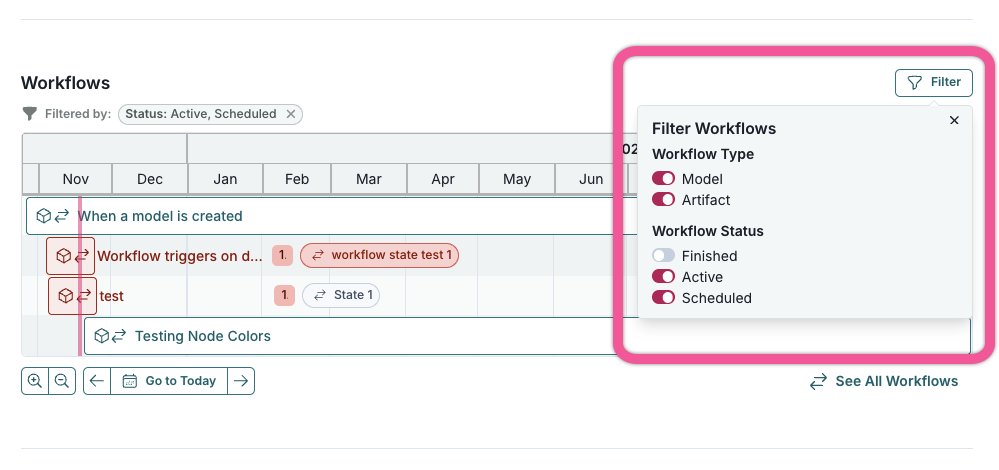
The workflows timeline now features a filter popover for quickly filtering by workflow type and status, making it easier to focus on what you need.
Manage workflows

A dashboard interface titled Workflows displays a calendar view with months from November to December 2023. Below the months, a table lists workflows with rows labeled When a model is created, Workflow triggers on d..., and test, each with associated colored tags indicating workflow state, such as workflow state test 1 in red. A filter panel on the right shows options for Workflow Type with Model and Artifact, and Workflow Status with Finished, Active, and Scheduled, each with checkboxes. Navigation buttons for previous and next months are located at the top left, and a See All Workflows link is at the bottom right. The interface uses a mix of blue and red colors to denote different elements and statuses.

Workflows timeline filter