Linking external models
Link models in the ValidMind model inventory to external systems to keep model information synchronized.
You can link, refresh, edit, and remove these connections as needed.
Prerequisites
Link models
In the left sidebar, click Inventory.
Select a model by clicking on it or find your model by applying a filter or searching for it.4
Scroll down until you locate the available connections for integrations in the right sidebar.
For example, MLflow or Amazon SageMaker.
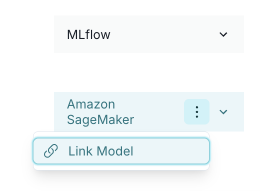

Hover over the connection.
When the menu appears, click on it and select Link Model.
In the modal that opens, pick the external model from the select model dropdown.
Optional: Click Test Connection to ensure the connection is working as expected.
If the test is successful, the message Connection Test Successful displays.
Click Link Model.
After linking, the message Pending initial sync displays. This means that the model is linked to the external system, but data hasn’t been synchronized yet. If necessary, you can refresh the model data.5
Refresh model data
In the left sidebar, click Inventory.
Select a model by clicking on it or find your model by applying a filter or searching for it.6
Scroll down until you locate the connection you want to edit in the right sidebar. For example, Amazon SageMaker.
Hover over the connection.
When the menu appears, click on it and select Refresh.
Edit model links
In the left sidebar, click Inventory.
Select a model by clicking on it or find your model by applying a filter or searching for it.7
Scroll down until you locate the connection you want to edit in the right sidebar. For example, Amazon SageMaker.
Hover over the connection.
When the menu appears, click on it and select Edit Link.
In the modal that opens, make your changes. For example, select a different model from the select model dropdown.
Click Update Link to save your changes.
Remove model links
In the left sidebar, click Inventory.
Select a model by clicking on it or find your model by applying a filter or searching for it.8
Scroll down until you locate the integration box (for example, MLflow or Amazon SageMaker) in the right sidebar.
Hover over the connection.
When the menu appears, click on it and select Remove Link.
In the confirmation modal that opens, click Yes, unlink it.
The model is unlinked from the external system.